
Business Resources
How to Find Your Product Feed Link (Shopify, WooCommerce, Google and More)
Where to find your product feed link on Shopify, WooCommerce, Google Merchant Center and other platforms, so you can list your used stock on SDS.
By Andrew Anderton3 min read
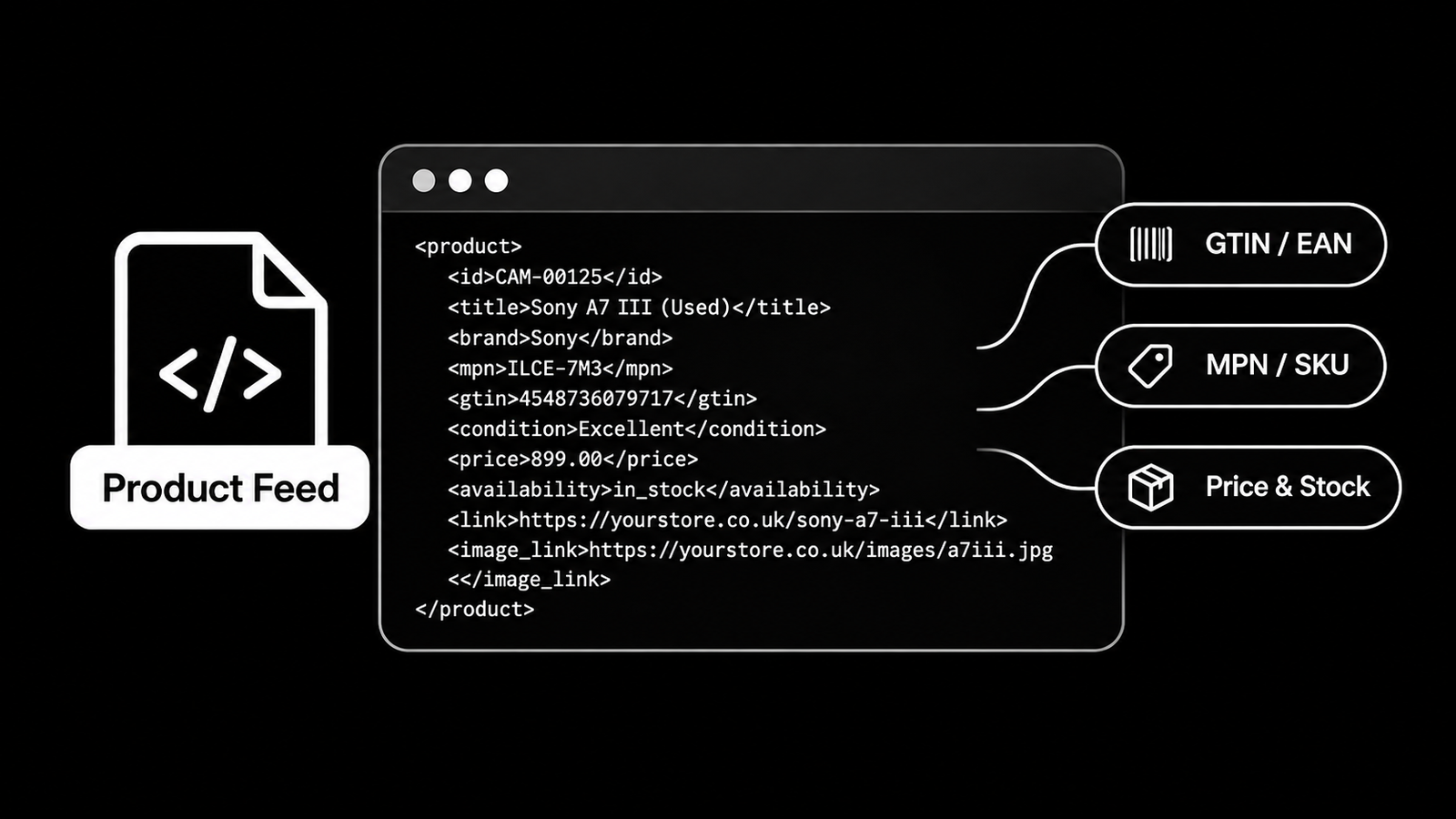
To list your used stock on SDS, we need a link to your product feed. A product feed is a file that lists every product in your shop, with its title, price, condition, photo and a link to the product page. Most online shops already have one, because the same file is used for Google Shopping.
This guide explains How to find your product feed link on the most common platforms such as: Shopify, WooCommerce, Google and More.
What a product feed link looks like
A feed link is a normal web address that opens a file rather than a page. It usually ends in .xml, .csv or .txt, for example yourshop.co.uk/feeds/google-shopping.xml.
The link must open without a password or login, so we can read it every morning.
Shopify
Shopify doesn't create a public feed link on its own. The Google & YouTube app sends your products straight to Google, but it doesn't give you a link you can share.
To get a feed link, install a product feed app from the Shopify App Store. Search for "Google Shopping feed" and choose an app that gives you an XML or CSV feed link. Once you've created a feed in the app, copy the feed link it shows you.
WooCommerce
WooCommerce also needs a plugin to create a feed. Popular options include Product Feed PRO for WooCommerce and CTX Feed. Create a Google Shopping feed in the plugin, then copy the feed link from the plugin's list of feeds.
If you already use a plugin for Google Shopping, you probably have a feed link already. Look in that plugin's settings.
Google Merchant Center
If your products are added to Google Merchant Center by a scheduled fetch, the feed link is saved there. In Merchant Center, open Settings, then Data sources, and choose your product source. The file address it fetches from is your feed link.
If your products reach Google through an app or a direct connection, for example the Shopify Google & YouTube app, there's no feed link in Merchant Center. Use one of the other options in this guide instead.
BigCommerce, Magento and other platforms
Most other platforms create a feed through an app, extension or plugin. Look for one that creates a Google Shopping feed, as that format includes everything SDS needs.
Feed management tools such as DataFeedWatch and Channable can also create a feed link from almost any shop.
Affiliate Networks
If your business already operates an affiliate programme through a network such as Awin, Impact or another provider, you may already have a product feed available to approved publishers.
In this case, simply tell SDS which affiliate network you use and provide your programme details.
We can then discuss obtaining access to the appropriate product feed through your existing affiliate arrangement.
Ask your developer or agency
If someone else built or manages your website, or runs your Google Shopping ads, ask them for "the link to our Google Shopping product feed". They can usually send it in a few minutes.
What your feed should include
- Product title
- Price
- Condition, for example used, refurbished or a grade such as Excellent
- Link to the product page
- Main photo
- Stock availability
Barcodes (GTIN) and manufacturer part numbers (MPN) are optional, but they help us match your items to the right products faster.
Adding your feed to SDS
Paste your feed link into the Add your product feed step of your account setup. Our team checks your feed and matches your items before your listings go live. If you get stuck, email your SDS contact and we'll help. Not an SDS dealer yet? Apply to become a dealer.
More articles
See all articles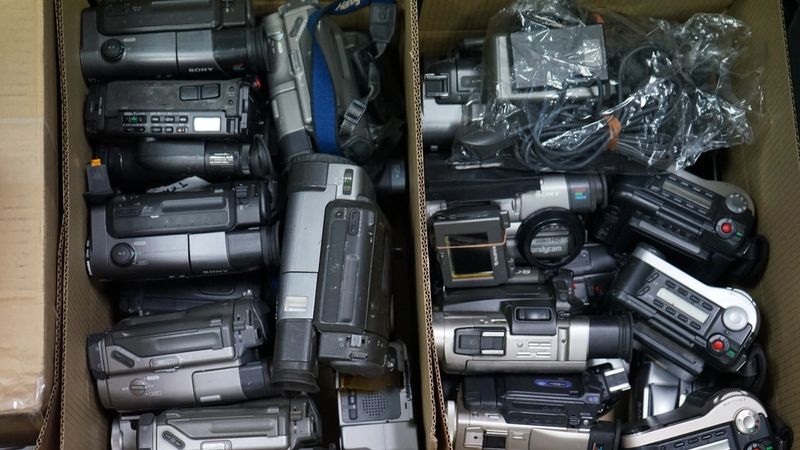
Business Resources
Where to Source Used Camera Gear for Resale: A UK Dealer's Guide
Learn how to source used cameras for resale in the UK, from eBay and auctions to repairs, wholesale suppliers and customer trade-ins.
Selling Guides
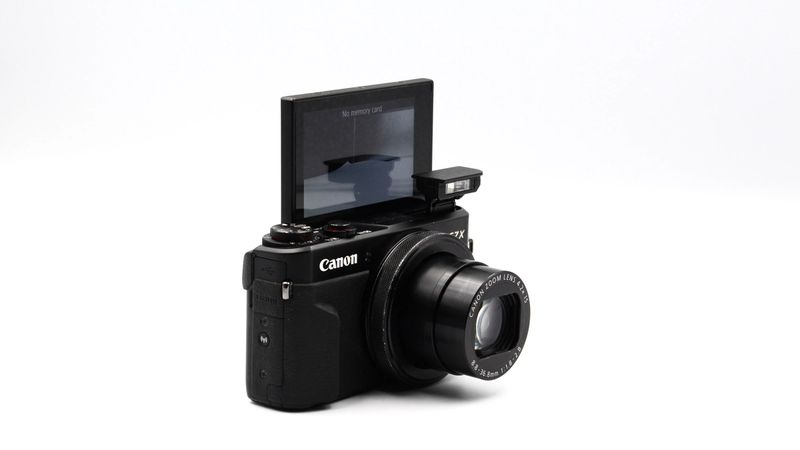
Where to Sell Camera Gear in the UK: Trade-In, Marketplaces, or Direct?
Looking to sell camera gear in the UK? We compare marketplaces, camera dealers, and trade-in comparison services to help you find the best way to sell or trade in your used camera equipment in 2027.
SDS News
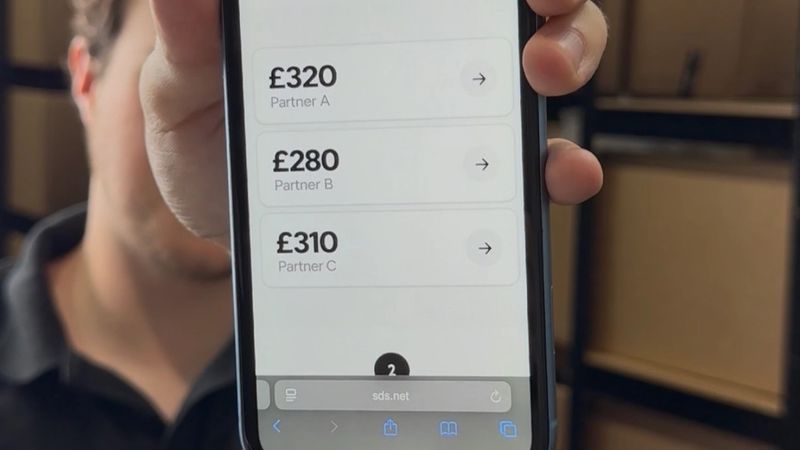
Introducing SDS Compare: Why We’re Changing How the UK Buys and Sells Used Tech
SDS started as a specialist used-camera business in 2021. Today, we're building something much bigger: a comparison platform designed to make buying and selling used technology easier for everyone.